

This is the main page of your website
Here you can set the welcome text for your home page along with the title shown in the main menu for this page and any additional content that your site design may include.
You can choose between using the default page header options (created in the Website > Images section of the CMS), a slideshow (created in the Slideshows section of the site) or using a set of images (one or more) to create a static header for just this page.
If you choose either the second or third option you will be given either a selection of slideshows or an image upload dialog in order to set your slideshow or static image(s).
This is where you can choose which of your calendars to use the data from on this homepage and to be inherited by any page below it (except calendar pages or sub homepages where you can reset another calendar source). You can also choose the default setting which is to merge the data from all your calendars.
Use this option to choose what page to navigate to for any link on this home page to the calendar. We suggest you link to a calendar page that shares the same 'calendar source' setting set on this homepage so that the events shown will match.
If you have a news index on your home page, this option allows you to set which news archive/index to use as the source for the home page news module.
If you have a newsletters index on your homepage, this option allows you to set which newsletters page to use as the source for the home page newsletters module.
If you have any of these modules or a combined social media module on you home page these options will allow you to choose which accounts to stream data from or to merge data from all your accounts.
If you have a home page video embedded you can set the source of the video using these controls. You can upload your own mp4, link to an mp4 held on another server or input a youtube url.
If you have a switcher module on your home page this section will allow you to add switcher cards.
Be aware: Many of these controls will depend on you specific website design
Here you can set the content of this page along with the page title, the label shown in the main menu, a specific site url (if you wish to set one). There may also be additional content if your site design includes it.
If you wish to set a publish date and expiry date for a page you can do so here. You can set neither, one or both of these fields.
You can choose between using the default page header options (created in the Website > Images section of the CMS), a slideshow (created in the Slideshows section of the site) or using a set of images (one or more) to create a static header for just this page.
If you choose either the second or third option you will be given either a selection of slideshows or an image upload dialog in order to set your slideshow or static image(s).
You calendar data is controlled in this section. You can add multiple calendar sources from ics feeds (such as from Google Calendar or Outlook) or you can set up a manually managed calendar with similar functionality as offered by those two calendar providers.
Each calendar has options to set it up. Firstly a calendar name for your reference. Then you may choose whether to use an external .ics feed and to set the feed url or to not use an .ics feed in which case the calendar will be manually edited.
A typical .ics feed may be something like:
https://calendar.google.com/calendar/ical/oghck19nh5dsfcpeuabs3mphag%40group.calendar.google.com/private-cfe4f15bb5270cb6047d28a001e5a219/basic.ics
To retreive your Google calendar .ics url follow these steps...
The following controls are used whether your calendar data comes from an .ics feed or not
Category names and colours can be set here. Any event can only be part of one category. If an event falls into several categories then these should not be categories. Instead they should be tags (explained further down). Categories are mutually exclusive and an event can have one or no category.
To add a category simply type a name in the input to the left of the 'New Category' button, choose a colour by clicking on the colour selector and click the 'New Category' button.
To edit an existing category click on the pencil icon in that category.
To delete a category click on the dustbin icon in that category.
You will see a list of all your calendar events in the main section below the options. Here you can see both individual events and recursions of thos events (everything that will be shown on a calendar that includes this calendar source).
If the event is the main event (not a recursion) you will be see various controls in the right side of the event.
The attachments button will allow you to attach files (from your CMS files section or via upload), internal site pages or external links to that event. You may use these attachments for things like parental signoff forms for a school trip event, or after an event you may add a link to the news page containing news and pictures from that event. These attachments will also appear in recursions of this event.
The next control allows you to choose what category (if any) the event should appear under. This allows visitors to filter the events by category if they should wish to and if your site design allows. You will see that when a category is set, the category colour will also be displayed to the left of the event and all its recursions.
The Tags control allows you to manage tags for this events and its recursions as well as creating new tags and deleting tags accross all your events. An event can have any number of tags connected to it and tags (unlike categories) are not mutually exclusive.
You will see an additional option in each event that will allow you to delete it. If the event is a recursion of another event then only that recursion will be deleted. If the event is an original event then you will be given the choice to only delete that event or delete it and all of its recursions.
In a manually edited calendar you can also add events by using the 'Add Event' button. This will provide a variety of options to set up a single or recurring event. Events can be all day events (with no time specified), multi-day events (covering a range of dates which may also be all day events or have start and end times), or single day timed events (with start and end times). You can also set this event to repeat on selected days of the week until a certain date or forever.
Here you can set up the images used across your website.
Your school logo is usually used in the header and sometimes in the footer of your site
This is the small icon that appears in the browser tab and must be a .png type file
This image will replace any social media images that are used in your website that do not exist. For instance, your website may show the image from a Tweet, but sometimes a Tweet may be only text and so this image will be used in place of the missing image to maintain the style of the website.
These images will be used as page header images when a page does not have specific images or slideshows set. They may also be used elsewhere in the design.
It is important to understand that these images may appear in varying formats & sizes and may be cropped in different ways depending on if they are being viewed as a single header, as part of a composite headre, on a desktop computer or on a mobile device etc etc. For this reason default images should conform to the following standards:
1) They should be high quality images (we recommend at least 2400px wide).
2) The focal point of the image must be in the center (both vertically and horizontally) of the image.
3) That focal region should not exceed 50% of the total height/width. In some cases (especially for portrait images) you may need the focal region to be even less than 50% of the image's height.
4) The top, bottom, left and right 25% should be croppable without loosing the main focal interest of the image.
Acceptable Default Images
Unacceptable Default Images
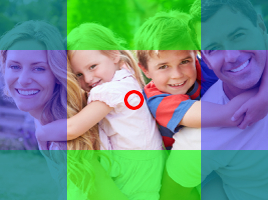

You can also use our online tester if you are still unsure if an image is suitable as a default image.
This is where the links to your website pages containing Cookie and Privacy Policies are set.
This is where the general settings for how your notices appear is controlled.
You can opt for a standard dialog that pops up if there are notices currently on your site. Occasionally a design will incorporate a sliding ticker tape alert instead.
If you wish notices to be displayed on all pages or just the homepage.
Choose between these two options for the behaviour of the notices dialog when a user has already seen the current notices and closed them. If you still wish them to see the notices then choose the second option. If not choose the first.
Don't worry, if you add new notices to your site they will see them which ever option you choose.
There are 3 types of links that may be used acroiss your site. They are all controlled in the same way and may include image uploads, link text and will always include either an internal or external link target.
These may be used across the entire site depending upon your design.
These are usually seen in the header on the homepage depending upon your design.
Are usually used in the footer part of your web pages depending upon your design.